
Hour Timesheet 2.0 integrates directly with your company’s QuickBooks file — whether you use QuickBooks Desktop (QBD) or QuickBooks Online (QBO). This section walks you through the full setup process, from connecting your QuickBooks file to assigning charge codes and leave policies to employees.
Step 1: Connect and Sync Your Data From Your Company QuickBooks File (Desktop or Online)
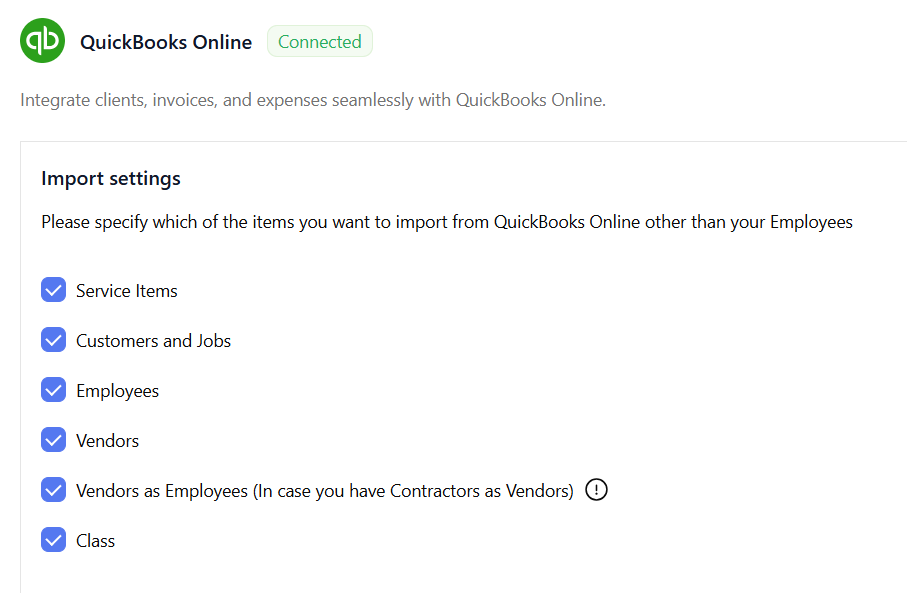
Before importing any data, you must connect Hour Timesheet to your QuickBooks file. This connection allows HTS to read your chart of accounts, service items, customers/jobs, vendors, and employees.
What this step does
Connecting your QuickBooks file allows Hour Timesheet to:
- Pull in your company’s master data
- Sync customers, jobs, service items, and pay types
- Import employees and contractors
Where to connect
Data & Sync → QuickBooks Online / QuickBooks Desktop
Step 2: Map Codes Imported From QuickBooks for Employee Assignment
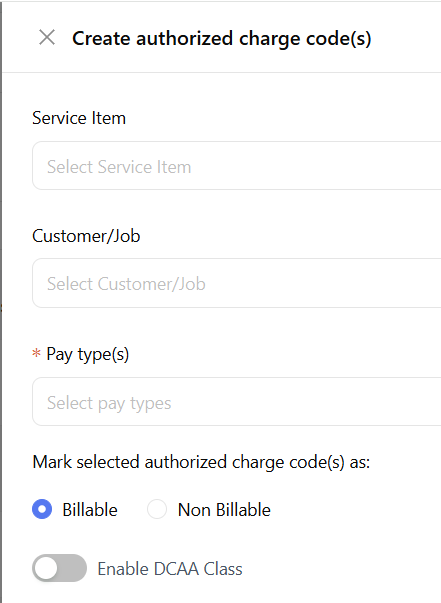
After importing your QuickBooks data, the next step is to map your Customers/Jobs, Service Items, Pay Types, and Classes into Authorized Charge Codes. These mapped codes are what employees will later select when entering time.
What this step does
Mapping creates the “building blocks” of your timekeeping system by combining:
- Customer/Job
- Service Item
- Pay Type (QuickBooks Desktop Only)
- DCAA Class (if applicable)
- Billable/Non‑billable status
Each combination becomes an Authorized Charge Code.
Where to map codes
Charge Code Setup → Charge Code Mapping → Map Codes
Once your charge codes are mapped, you’re ready to assign them to employees.
Step 3: Assign Charge Codes to Employees so They Only See the Codes Relevant to Them
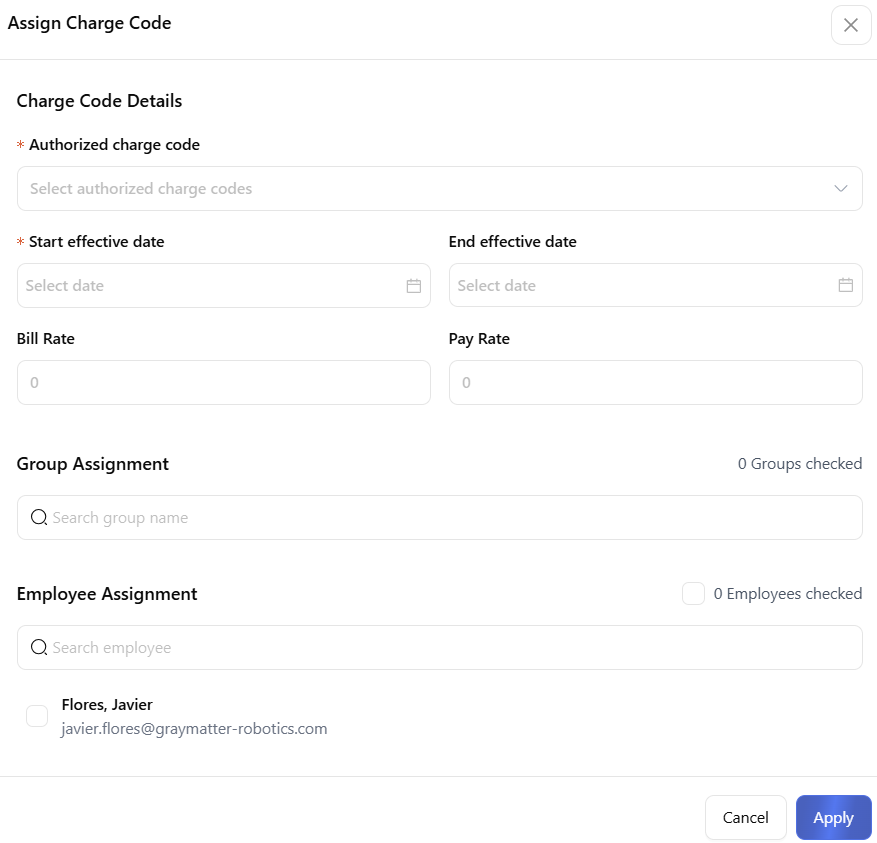
Assignments control visibility — employees can only select the charge codes that have been assigned to them. This keeps timesheets clean and prevents miscoding.
What this step does
Assigning charge codes:
- Limits what each employee can charge time to
- Ensures employees only see relevant projects and tasks
- Supports DCAA compliance
Where to assign charge codes
Charge Code Setup → Assignments
Once charge codes are assigned, employees can begin entering time.