
Hour Timesheet Mobile App
Download Links
- iOS Download: Apple iOS
- Android Download: Google Play Store
Features
- Clock In/Out
- Daily Timesheet Entries (job/leave codes)
- Leave Request
- Hour Timesheet Mobile includes employee features/functionality ONLY
Supported Devices
- Android Smart Phones
- iOS Phones
- iPad Devices
- NOT SUPPORTED: Android Tablets
Login Credentials – Only users with an existing Hour Timesheet account have access to successfully login to the Hour Timesheet Mobile App. Before logging in, users will have to create a password by clicking the link from the system generated email invitation (from the account admin). To login to your Hour Timesheet Mobile app you will need the following information:
- Domain (DO NOT enter http:// or hourtimesheet.com)
- Password
- Clock In/Clock Out without Job Tracking: Employees who are required to clock in/out daily will use this option. Users can have as many in/out pairs as needed (breaks, lunch, etc.). This feature is optional. The default setting for this feature is OFF. To have this setting turned ON, please contact your Hour Timesheet Support Rep.
- Clock In/Clock Out with Job Tracking: Employees will be required to select a job code/project/dept/etc. upon clocking in. Upon clocking out, the employee’s calculated time will be added to the “Hours Worked” section of the timesheet against the selected job code. This feature is optional and is hidden by default if no values are present in the in/out section of the timesheet. The default setting for this feature is ON. To have this setting turned OFF, please contact your Hour Timesheet Support Rep.
- Selection of codes (list of customers/jobs/payroll items to charge time against)
- Daily notes (optional)
- Duration (hours worked)
- Navigation buttons that allow the user to move from day-to-day to make timesheet entries for different dates (previous or future)
- Cancel button
- Save button
- Selection of leave codes (list of leave items to charge time against)
- Current leave balance
- Notes (optional)
- Duration (leave hours to be entered)
- Navigation buttons allow the user to move from day-to-day to make timesheet entries for different dates (previous or future)
- Cancel button
- Save button
- Cancel button
- Submit button
- Create/submit new leave request
- View current balance
- Add comments to leave request
Hour Timesheet Mobile Options
Option 1 Time Card
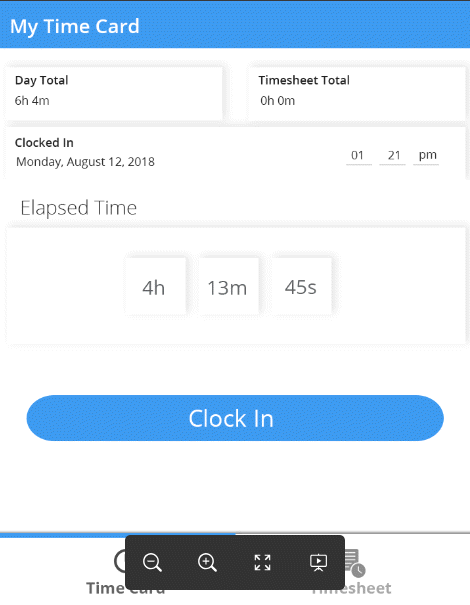
NOTE: This feature only allows the employee to see the current day’s activities. Employees can see previous day’s punches by accessing the account on a PC/Laptop using a browser-based account login.
Option 2 Timesheet
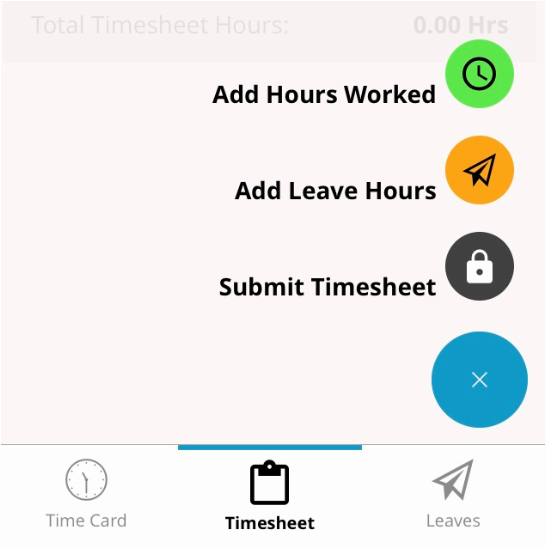
Add Hours Worked – this feature allows the user/employee to select from a predefined list of job codes to enter the duration of time (hours worked) on to the timesheet. Actions Include:
Add Leave Hours This feature allows the user/employee to select from a predefined list of leave codes to enter on to the timesheet. Actions Include:
Submit Timesheet This feature allows the user to submit/sign a timesheet for the current timesheet period. Actions Include:
Option 3 Leave
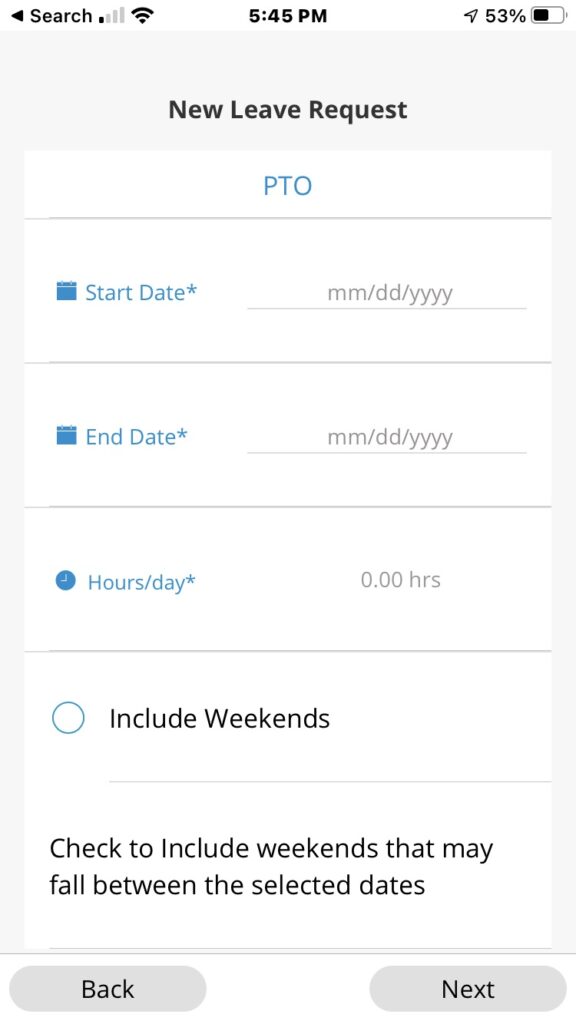
Request Leave– this feature automates the workflow of requesting leave. Employees can: