
Hour Timesheet and QuickBooks Online Setup
Overview
Hour Timesheet integrates with QuickBooks Online to keep your employees, customers/jobs, service items, classes, and vendors in sync. All chargeable data originates in QuickBooks Online and is imported into Hour Timesheet through the Connect to QuickBooks page.
This guide explains:
- How to sync (import) new data from QuickBooks Online
- What data can be imported
1. Before You Begin
To sync data, you must:
- Have an active QuickBooks Online company file
- Be logged into Hour Timesheet as an Admin or Accountant
- Have already completed the initial QuickBooks Online connection during setup
2. What Data Can Be Imported
Hour Timesheet imports the following from QuickBooks Online:
- Employees (including email addresses)
- Customers / Jobs / Projects
- Service Items
- Classes
- Vendors
Important:
Hour Timesheet does not allow these items to be created inside HTS. They must be added in QuickBooks Online first, then imported.
Employees can be created in HTS, but those manually created employees cannot sync timesheet data back to QuickBooks.
3. How to Sync (Import) Data From QuickBooks Online
- Click Import to begin the sync.
- Log in to your Hour Timesheet account as an Admin or Accountant.
- Navigate to Settings → Connect to QuickBooks.
- Check the boxes next to the data types you want to import.
Timesheet Settings Timesheet Type
This is the timesheet period displayed in the My Timesheet menu for each employee. Changes to this setting after timesheet data exist in your site will cause a conflict of reporting data. Please contact customer support at support@hourtimesheet.com before changing this setting if your account already has existing timesheet data. Timesheet options are:
- Monthly
- Weekly
- Biweekly
- Semi-monthly
Accounting Setup (QuickBooks Online)
To sync your data, you will need access to your login credentials for your QuickBooks Online account.
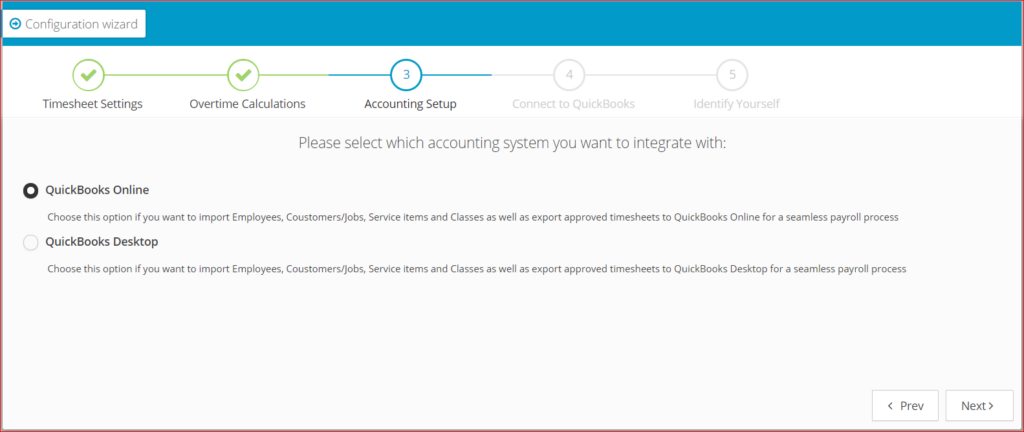
Connect to QuickBooks Online
Click the Connect to QuickBooks box.
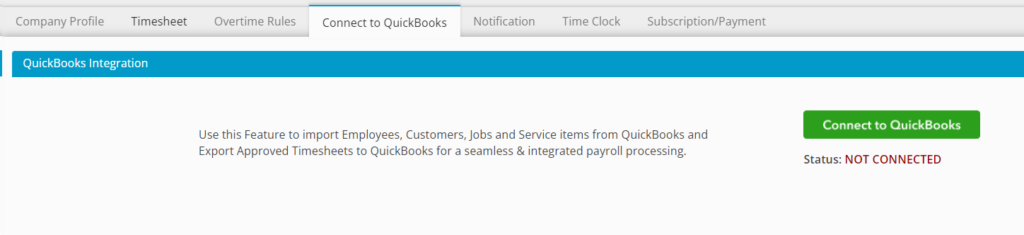
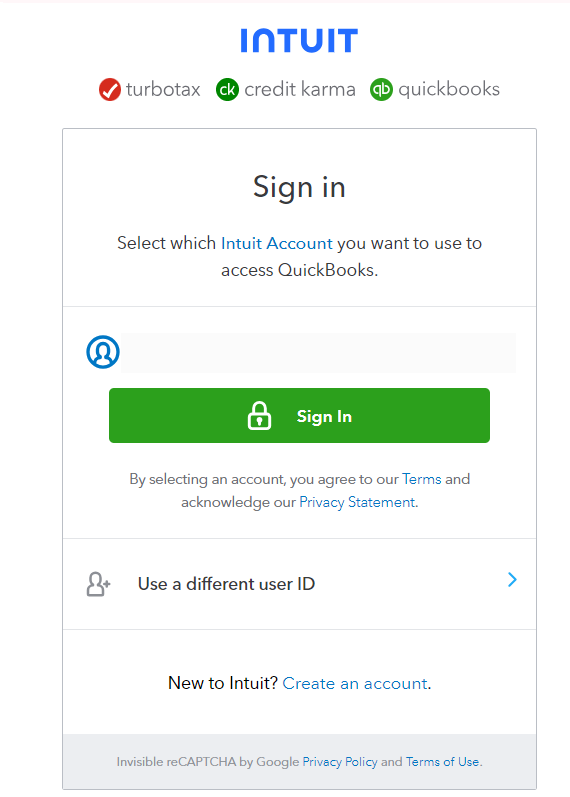
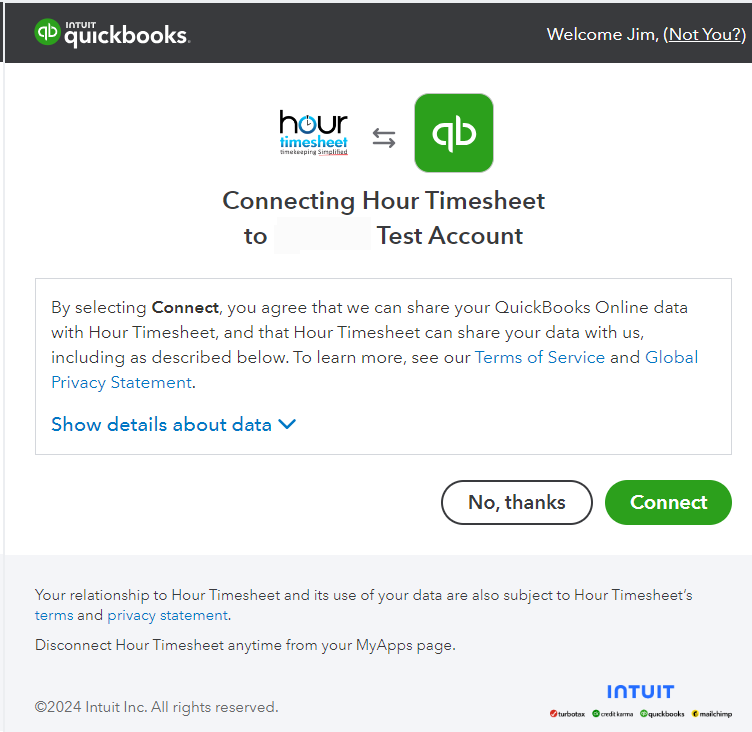
You are now ready to import all of your data from QuickBooks Online to Hour Timesheet. This process will import Employees by default (no check box required). You also have the ability to import Customer/Jobs, Service Items, Classes and Vendors. Place a check in the box next to the data that you would like imported From QuickBooks Online into Hour Timesheet

You have now successfully imported all of your data to your Hour Timesheet URL.
5 Identify Yourself (QuickBooks Online)
By default, you will only be given the Admin role. If you are also an end user and need to complete a timesheet, select your name in the box below. This process will give your username the employee role.