Leave Balance Adjustments
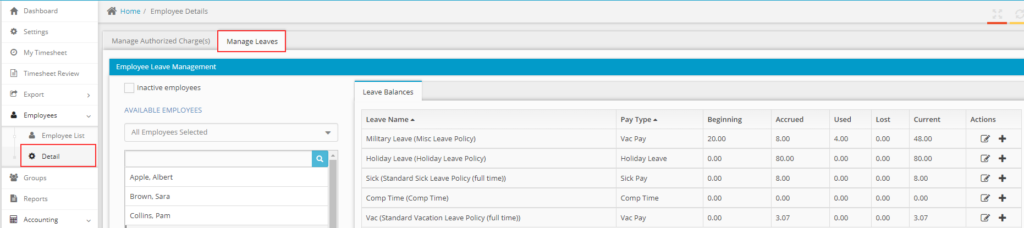
Once leave has been assigned to employees, there may be times when you need to manually adjust a leave balance. This is common when onboarding new employees who are bringing over an existing balance from a previous system, correcting an entry error, or making a one-time exception approved by management. Hour Timesheet gives authorized users the ability to view and edit individual employee leave balances directly from the Employee Detail screen.
Who Can View and Adjust Leave Balances
Access to leave balance information is role-based in Hour Timesheet:
- Supervisors — can view employee leave balances but cannot make adjustments
- Accountants — can both view and adjust employee leave balances
- Admins — can both view and adjust employee leave balances
If you need to make an adjustment but don’t see the edit option, check that your account is set to the Admin or Accountant role.
When Would You Need to Adjust a Balance?
Manual adjustments are useful in a number of common situations:
New employee onboarding — If an employee is joining mid-year and is bringing over accrued leave from a previous employer or a prior system, you can manually enter their opening balance rather than waiting for the system to accrue it from scratch.
Correcting an error — If a leave request was logged incorrectly or an accrual ran in error, an adjustment lets you correct the balance without affecting the employee’s timesheet history.
One-time exceptions — If management approves an additional day of leave outside of the normal policy — such as a bonus day for a work anniversary — this can be added directly to the employee’s balance.
System migration — If you are switching to Hour Timesheet mid-year, balance adjustments are how you carry over each employee’s existing leave balances from your previous system.
How to Adjust an Employee Leave Balance
Steps:
- Log in to Hour Timesheet as an Admin or Accountant.
- Navigate to Employee → Detail in the left menu.
- Click the Manage Leaves tab.
- Select the employee whose balance you need to adjust from the Available Employees list.
- Click the edit icon (pencil icon) next to the leave type you want to adjust.
- Enter the corrected balance or adjustment amount in the appropriate field.
- Click OK to save the change.
The updated balance will be reflected immediately on the employee’s leave record and timesheet.