Step 2. Setting Up Leave Policies in Hour Timesheet (Optional)
Leave Policies define the rules for how employees earn and use each type of leave — things like how quickly leave accrues, whether unused hours carry over, and how much time an employee can take in advance. This step is optional but recommended for any organization that wants to automate leave tracking and ensure consistency across their team. Policies are built on top of the Leave Types you created in Step 1.
Understanding Leave Types
Before creating a policy, it helps to know which type of leave earning method applies to your organization:
Accrued Leave — Leave that builds up over time based on an employee’s hire date. For example, an employee might earn 1 hour of sick leave for every pay period worked. Learn more about setting up accrued leave
Earned Leave — Leave that is calculated based on the number of hours an employee actually works, as recorded on their timesheet. Learn more about setting up earned leave
Comp Time – Comp Time (Compensatory Time) in Hour Timesheet allows organizations to award employees additional paid time off based on hours worked beyond their standard schedule. HTS provides a configurable, rules‑based engine that automatically calculates, accrues, and limits Comp Time based on your company’s policies. Learn more about setting up comp time
Creating a New Leave Policy
Start by creating the policy record. You will configure the detailed rules in Part B below.
Steps:
- Log in to Hour Timesheet as an Admin or Accountant.
- Navigate to Accounting → Leave in the left menu.
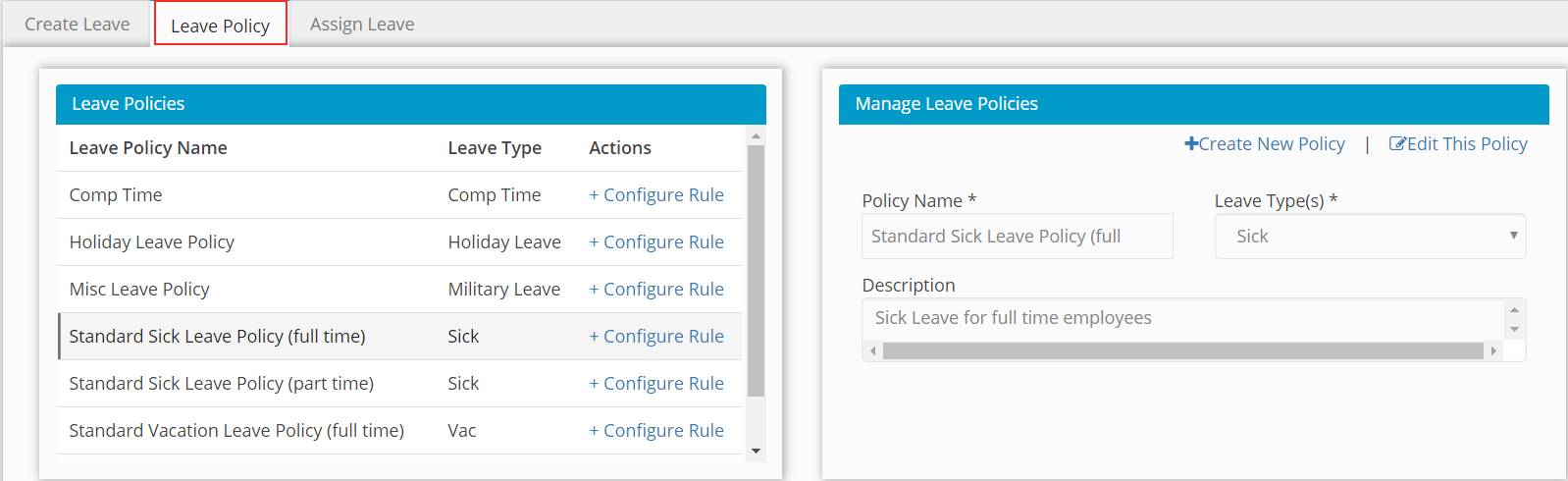
- Click the Leave Policy tab. Click Create New Leave Policy.
- Enter a Policy Name — for example: Standard FT Sick Leave Policy
- Select a Leave Type from the dropdown — for example: Sick Leave
- Enter a Description — for example: Standard Sick Leave Policy for Full Time Employees
- Click Save to complete the entry.
- Repeat steps 3–8 for each additional leave policy you need to create.
Configure New Leave Policy Rules
Once your policy is saved, you’ll set the specific rules that govern how leave is earned and managed.
- Click the + Configure Rule link next to the policy you just created, then complete the following fields:
- Leave Rule Effective From Choose when the policy begins for each employee:
- From Hire Date of Employee — accrual starts on the employee’s hire date.
- After a set duration from hire date — accrual doesn’t begin until a waiting period is complete (useful for probationary periods).
- Frequency of Accrual Define how often leave is earned — for example: weekly, bi-weekly, semi-monthly, monthly, or annually.
- Accrual Quantity Set how many hours of leave are earned during each accrual period. For example, an employee might earn 4 hours of vacation every month.
- Leave Balance Carry Over Frequency If unused leave rolls over from one period to the next, define the date on which that carryover occurs each year.
- Max Balance Set a cap on how many hours an employee can accumulate for this leave type. Once the cap is reached, any additional hours earned will be recorded as Lost.
- Max Overdraw Define how many hours into the negative an employee is allowed to go — useful if your policy permits employees to take leave before they’ve fully earned it.
Setting Up a Tiered Leave Policy
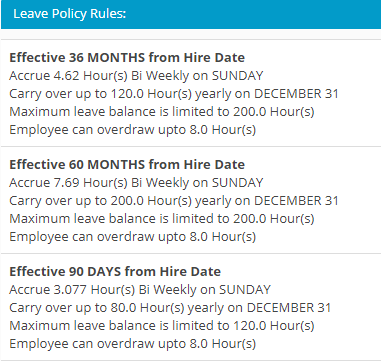
If your company offers different accrual rates based on an employee’s length of service, you can handle this with a tiered leave policy. Simply click the + Configure Rule link again for the same policy to add each additional tier — one rule per tier.
For example, a common tiered vacation policy might look like this:
- Years 0–3: Employees accrue 4 hours of vacation per month
- Years 3–5: Employees accrue 6 hours of vacation per month
- Years 5+: Employees accrue 8 hours of vacation per month
To set this up, you would configure three separate rules under the same policy, using the Leave Rule Effective From field to define when each tier kicks in based on the employee’s hire date. Hour Timesheet will automatically apply the correct accrual rate for each employee based on their tenure.
Tip: Make sure each rule’s effective date range lines up with your HR policy so there are no gaps or overlaps between tiers.