Tracking Overtime in Hour Timesheet
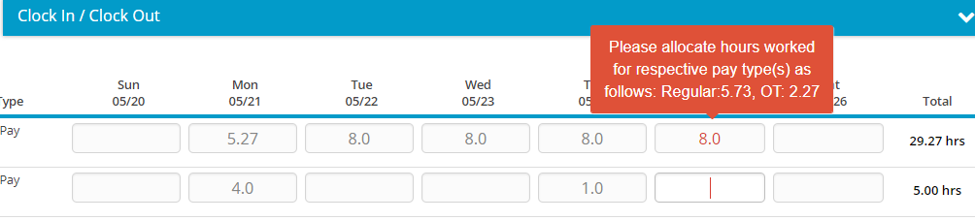
This feature allows the system admin to establish a business rule to set a threshold on the timesheet so that employees are forced to charge time to an “overtime” pay type once certain criteria is met (defined by the rule). Once configured; the employees will be notified upon timesheet entry that hours must be moved to a pay type associated with overtime. These hours will be identified in RED on the timesheet to the employee.
The Overtime Threshold Rule allows system administrators to define when employees must begin charging hours to an overtime pay type based on configurable criteria. This rule helps organizations enforce internal policies, maintain compliance, and ensure accurate labor allocation before timesheets are submitted for approval.
What the Rule Does
The rule monitors hours entered on the timesheet and compares them against a threshold defined by the administrator. Once the employee reaches or exceeds that threshold, the system requires any additional hours to be charged to a pay type associated with overtime.
When the threshold is met:
- The employee is immediately notified during time entry.
- The system highlights the affected hours in red on the timesheet.
- The employee must move those hours to an overtime pay type before submitting the timesheet.
- Supervisors and approvers will also see the red indicators if the employee attempts to submit without correcting the entries.
This ensures overtime is captured correctly at the point of entry rather than during payroll cleanup.
When to Use This Rule
Organizations typically use this rule when:
- Overtime must be separated from regular hours for payroll or billing.
- Employees work flexible schedules but must follow strict overtime policies.
- Compliance requires clear differentiation between standard and overtime labor categories.
- Supervisors need visibility into when employees exceed expected work limits.
How the Rule Works
The rule evaluates hours based on the criteria you configure. Common threshold examples include:
- Daily Overtime — e.g., overtime begins after 8 hours in a single day.
- Weekly Overtime — e.g., overtime begins after 40 hours in a workweek.
- Timesheet Period Overtime — e.g., overtime begins after a set number of hours in a biweekly or semi‑monthly period.
Once the threshold is reached:
- Any additional hours entered beyond the limit are flagged.
- The employee cannot submit the timesheet until the flagged hours are moved to an overtime pay type.
- The system enforces the rule consistently across all devices (web and mobile).
Employee Experience
Employees will see:
- A notification banner or message explaining that overtime rules have been triggered.
- Hours highlighted in red to indicate they must be moved.
- A prompt to select an overtime pay type before continuing.
This guidance helps employees correct entries without needing supervisor intervention.
Create Overtime Business Rules
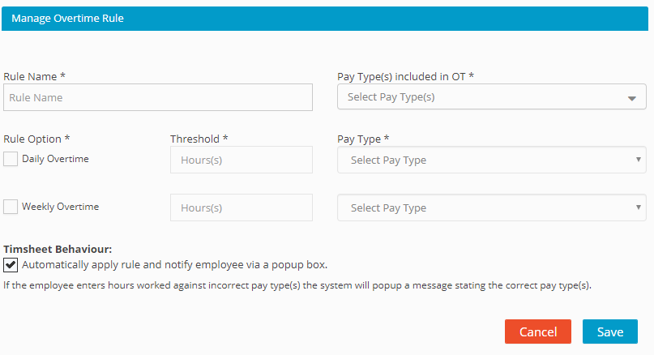
- Login to Hour Timesheet as Admin or Accountant
- Navigate to Settings/Overtime Rules tab
- Click Create New Overtime Rule
- Enter Rule Name (description of rule)
- Identify Pay Type(s) included in OT – these pay types should be the pay types associated with core hours (Regular, Hourly, etc.).
- Select check box with Rule Option. This setting allows the user to select a “Daily” or “Weekly” overtime Click Ok.
- Identify Pay Types from drop down box that contain the overtime pay type that must be used once a user has exceeded the daily and/or weekly overtime rule.
Assign Overtime Rules
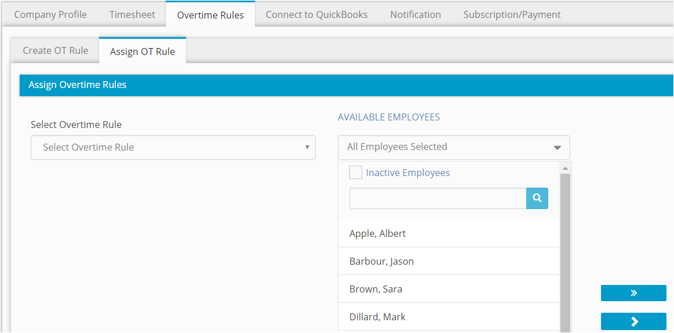
- Click the rule from the drop-down box
- Move the Employees from the “Available” box to the “Selected” box – these can be selected one at a time or be filtered by group.
- Click Assign