
Have a Question?
Exporting Timesheet Data to QuickBooks Online
Before you begin:
- Your Hour Timesheet site is connected to QuickBooks Online. (Admins can verify this under Settings → QuickBooks Online Integration.)
- Make sure all timesheets are approved . Only approved timesheet data ill available for the QuickBooks Online Export process
- Any corrections are submitted before exporting. Once a timesheet is exported, changes require a Correction Timesheet.
How to Export Timesheets to QuickBooks Online
Follow the instructions below to export timesheet data from Hour Timesheet:
- Login to your Hour Timesheet login page
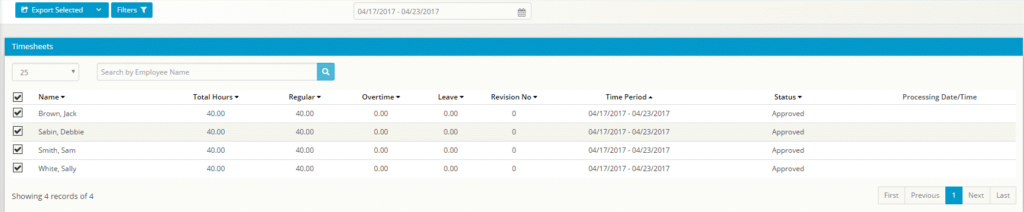
- Navigate to the Export Timesheet menu item
- Navigate to the proper date of the timesheet period to export menu item
- Place a check in the box next to the timesheet(s) that you would like to export
- Click the Export Selected button to begin the sync process.
- After successful export of data, timesheets will be displayed as Processed under the Review Timesheet menu link
Any changes to processed timesheet data will require a Correction timesheet.
Where to Find Your Imported Hours in QuickBooks Online
Once the export is complete, you can view the imported time entries directly in QuickBooks Online.
To locate the hours:
- Log in to QuickBooks Online.
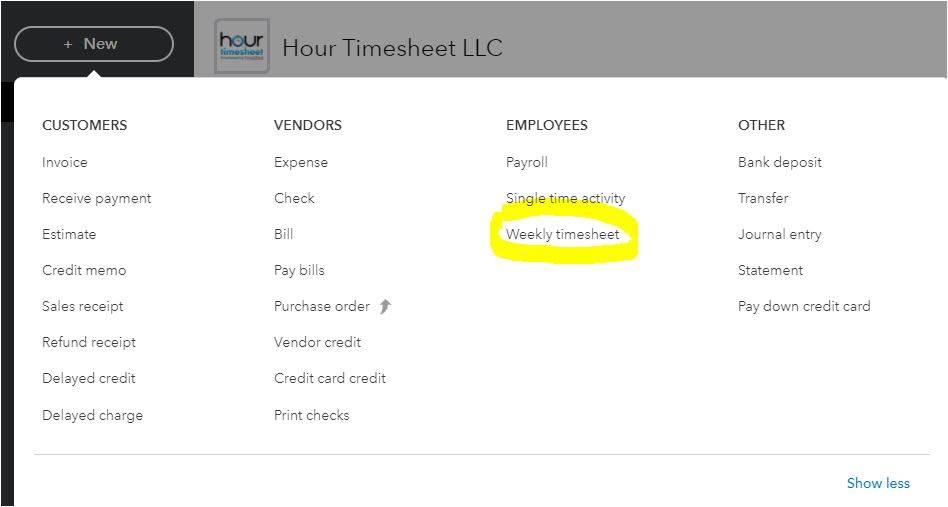
- Click the + New button at the top left of the dashboard.
- Select Weekly Timesheet under the Employees section.
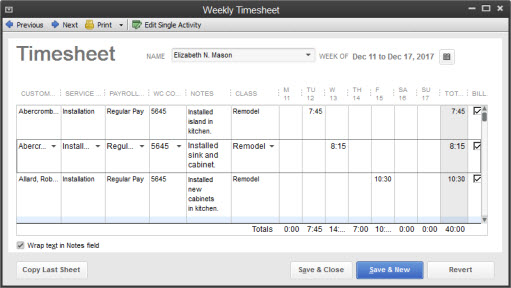
- Use the employee and date filters to view the imported entries.
All hours exported from Hour Timesheet will appear here, organized by employee, customer/job, and service item.
What to Expect After Export
- Job Costing: If you track time against customers or projects, those hours will appear in job‑related reports.
- Payroll: Exported hours flow into QuickBooks Online’s payroll module and will be available when you run payroll.
- Corrections: If you need to adjust a processed timesheet, submit a Correction Timesheet in Hour Timesheet and re‑export.